
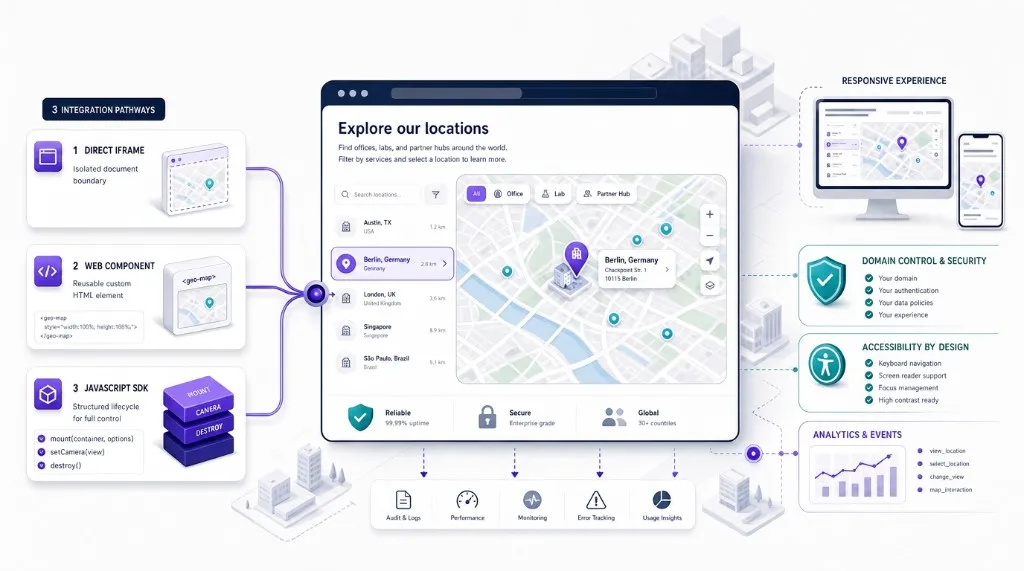
You can embed interactive map experiences on a website with a direct iframe, a reusable web component, or a JavaScript SDK connected to a live map. Use an iframe for a self-contained published map, a web component for simple HTML with a maintained layer, and an SDK when the host must control camera, lifecycle, or product actions. Production embeds also need sizing, domain controls, accessibility, crawlable text, and action analytics.
The sections below cover method selection, Kaleidr Viewer setup, responsive containers, security, accessibility, SEO, and common mistakes. For conversational attachment to a live renderer, see How to Add AI Chat to a Map. For the SDK category itself, see What Is an AI Map SDK?.
Embed essentials
- Method first: Choose iframe, web component, SDK, or native library by how much host-page control you need—not by the longest code sample.
- Reserve height: Give the map an explicit container height before load to avoid collapse and layout shift.
- Published Viewer: Kaleidr Viewer uses
product="viewer"and a share ID; access is share-link gated with publisher-defined allowed domains.- Text outside the canvas: Headings, summaries, and location lists keep the page useful for keyboard users, assistive tech, and search.
- Measure tasks: Track loads, selections, directions, and conversions—not map impressions alone.
How Do You Embed Interactive Map Experiences?
This guide creates a responsive map section for a marketing site, destination guide, property page, store locator, article, or software product. The finished experience includes a published interactive map, a container that works on desktop and mobile, a clear title and text summary outside the map, optional camera control from the host page, domain or credential restrictions, loading and failure states, accessible alternatives to map-only information, and events for measuring engagement. The examples use Kaleidr Viewer because it provides a published-map embed through one loader and one custom element; the same decision framework applies when choosing among a provider iframe, a map web component, or a custom Mapbox, Google Maps, MapLibre, or Leaflet implementation.
How Do You Choose the Right Embedding Method?
The first decision is how much control the host website needs. A published map on a content page usually does not need the same architecture as a map inside a SaaS workflow, so avoid choosing the most complex method by default.
| Method | Best fit | Host-page control | Main tradeoff |
|---|---|---|---|
| Direct iframe | Self-contained map or provider embed | Low | Fastest setup, limited integration |
| Web component | Reusable published map with simple HTML | Medium | Clean markup; behavior depends on the component contract |
| JavaScript SDK | Product integration with camera, lifecycle, events, or AI | High | More implementation responsibility |
| Native map library | Fully custom map application | Highest | Maximum control, largest engineering surface |
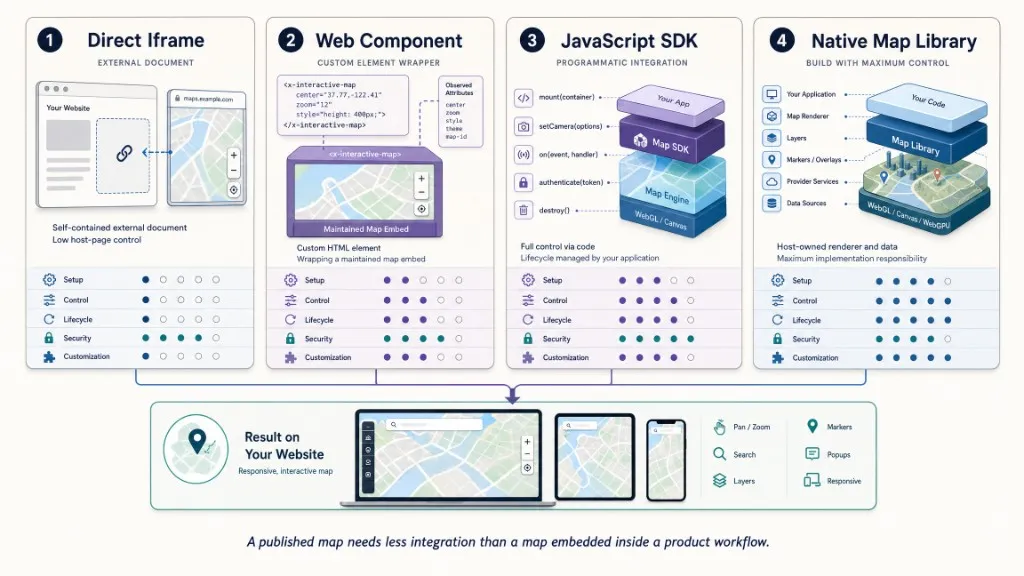
Use a direct iframe when the map is self-contained, the host page only needs to display it, and minimal engineering work is the priority. The HTML iframe element creates a separate embedded browsing context—useful isolation, but another document environment with its own resources and accessibility considerations. Use a web component when the team wants a declarative HTML element, attributes such as map ID or camera are sufficient, and the provider maintains the internal implementation; custom elements can hide loading and messaging behind a stable public contract. Use a JavaScript SDK when the host must retain a handle, update the camera or theme, destroy the map on route changes, attach to a live renderer, or coordinate browser authentication, events, or AI workflows.
How Does Kaleidr Viewer Embedding Work?
Kaleidr Viewer embeds a published Kaleidr map by share ID. The Viewer owns its own map and runs through an iframe doorway inside the <kaleidr-map> component; the host page can control supported behavior through the SDK handle and the documented messaging seam. The current contract has four important properties: product="viewer" selects the published-map Viewer; share-id identifies the published map; Viewer access is share-link gated and does not require an API key; and publisher-defined allowed domains still apply. The Viewer differs from Kaleidr Chat: Viewer owns its map, while Chat can attach to a live Mapbox, Google Maps, MapLibre, or Leaflet instance already running in the host application.
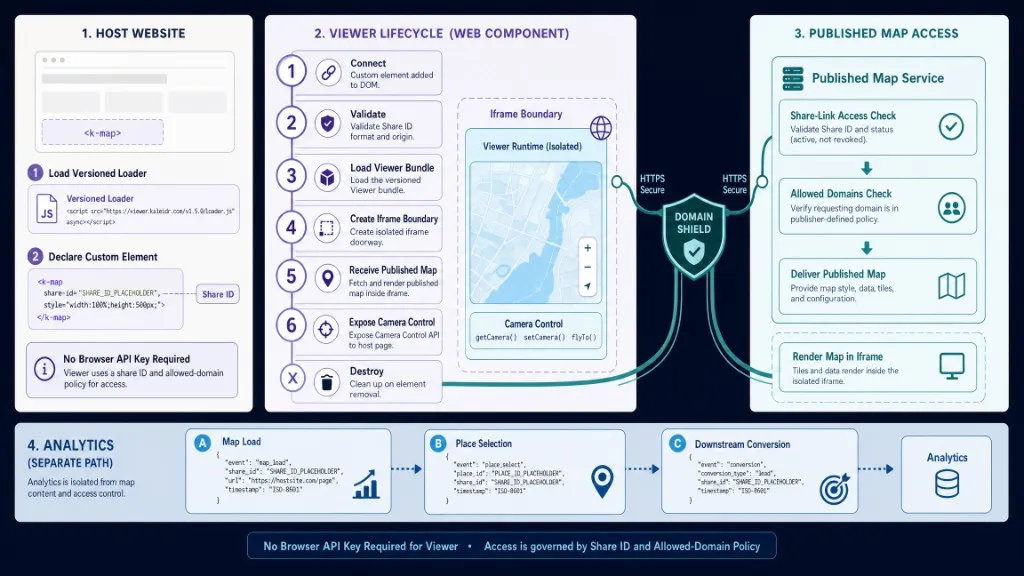
Load the versioned loader once from https://cdn.kaleidr.com/embed/v1/kaleidr.js before mounting a product. The loader defines <kaleidr-map> and installs window.Kaleidr, then lazy-loads the selected product bundle. A minimal published-map embed places the custom element with an explicit height:
<kaleidr-map
  product="viewer"
  share-id="abcd1234"
  style="display:block; height:520px;">
</kaleidr-map>
The example follows the current quickstart, <kaleidr-map> reference, and Viewer embed documentation. Replace abcd1234 with the published map’s share ID. The map must be published and permitted to render on the host domain. Prefer the documented component over constructing an internal Viewer URL that is not part of the public contract.
How Do You Build a Responsive, Accessible Map Page?
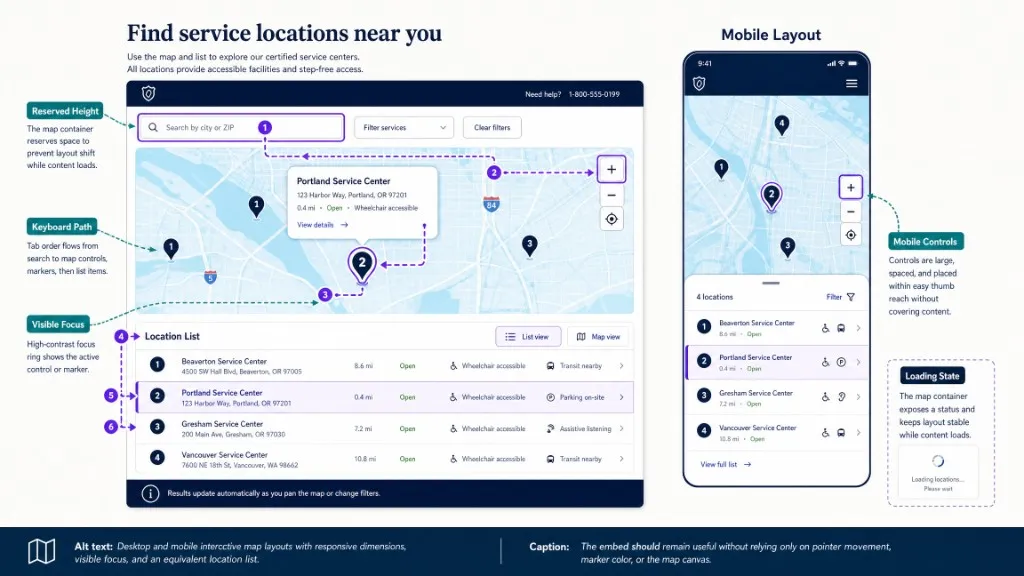
An embedded map needs an explicit height. Without one, the container may collapse, produce an unstable layout, or fall back to a provider-specific default. Wrap the element in a shell that reserves space before the map loads—full width, a minimum height, and often a 16:9 aspect ratio on desktop with a taller fixed minimum on narrow phones. Reserving space reduces unexpected layout movement; embeds without defined dimensions are a common cause of Cumulative Layout Shift (web.dev CLS guidance). Test the real map rather than relying only on the aspect ratio: a shallow widescreen map often works on desktop but becomes difficult to use on a phone.
The Viewer element observes center, zoom, pitch, bearing, and theme where supported; center uses longitude,latitude order. Choose the opening camera so the map’s purpose is clear—featured district, development and transit, or a wider national view with an obvious search or filter. When the host page needs a handle, mount with the imperative API after the loader is present:
const viewer = Kaleidr.mount("#featured-map", {
  product: "viewer",
  shareId: "abcd1234",
  center: [-0.12, 51.5],
  zoom: 11
});

// In an SPA, call destroy before removing the page or component.
window.addEventListener("pagehide", () => {
  viewer.destroy();
});
Kaleidr.mount() returns a handle synchronously while the product bundle loads; calls made before the bundle is ready are queued. The handle always provides destroy() and may provide setCamera() or setTheme() where the selected product supports them. Single-page applications should connect teardown to the route lifecycle so repeated navigation does not create duplicate embeds.
An interactive map cannot be the only way to access essential information. WCAG 2.2 provides the framework for accessible web content: give the map a meaningful heading and labeled region, publish an equivalent location list with names, addresses, categories, and actions, confirm keyboard users can reach and leave the map without traps, and avoid color-only markers. For a raw iframe, include a descriptive title attribute rather than a generic label such as “map.”
How Should Teams Handle Domains, Performance, and SEO?
A share ID is not an unrestricted public permission model. Kaleidr Viewer is share-link gated, and publisher-defined allowed domains still apply—a map restricted to approved sites will not render elsewhere merely because someone knows the share ID. Plan the domain list around production, www variants when both are used, staging, and local development when supported. Kaleidr’s current pricing lists embed support with Pro and Enterprise; Viewer itself does not require an API key, but teams should confirm plan, map-load allowance, and publishing controls before production (pricing).
Treat the map as a meaningful application surface. Reserve dimensions before loading. Lazy-load or defer below-the-fold maps when they are not essential to the initial viewport—native loading="lazy" applies to raw iframes, while a custom component may need a host-side Intersection Observer or click-to-load facade. Do not delay a map that is the page’s primary above-the-fold experience. Avoid loading duplicate map stacks on one page, and measure loader time, time until interactive, tile transfer, and mobile memory on real devices.
The host page still needs crawlable, descriptive text. State what the map contains near the top, publish important places or conclusions in HTML, use descriptive headings, and add structured data only when it matches visible content. Google documents that JavaScript rendering introduces additional stages for search systems (JavaScript SEO basics). Place the embed inside a stable canonical page rather than many near-identical URLs that differ only by map center. Map creation and publishing before the embed step are covered in AI Interactive Map Builder.
| Mistake | What happens | Recommended correction |
|---|---|---|
| No explicit map height | The map collapses or shifts layout | Reserve responsive dimensions before loading |
| Using a raw internal Viewer URL | The host depends on an undocumented detail | Use <kaleidr-map> or Kaleidr.mount() |
| Domain not allowed | Works in one environment, fails in production | Add exact approved deployment domains |
| Loading every map immediately | Unnecessary JavaScript, tiles, and data | Defer below-the-fold maps or use click-to-load |
| Map-only content | Users and search systems miss essential facts | Add a text summary and equivalent location list |
| No teardown in an SPA | Duplicate instances and listeners accumulate | Retain the handle and call destroy() |
| Tracking only map views | Exposure is mistaken for task completion | Track selections, directions, details, and conversions |
| Embedding private operational data | A shareable surface exposes the wrong records | Use an authorized application workflow |
Final Verdict
Use a direct iframe when a self-contained provider map is enough. Use a web component when the team wants a clean declarative embed with a maintained public contract. Use a JavaScript SDK when the host application needs camera control, lifecycle management, AI interaction, authentication, or deeper product integration. Kaleidr Viewer is designed for published maps that should appear consistently across websites without a browser API key: the host page loads kaleidr.js, supplies the share ID, reserves a responsive container, and respects allowed domains. A successful embed should load reliably, explain its purpose, remain usable on mobile and by keyboard, expose essential information outside the map, and help the visitor complete a measurable task.
Embed a Published Kaleidr Map
Publish a map in Kaleidr Studio, copy its share ID, and add the Viewer through the versioned JavaScript loader. Read the Viewer Embed Documentation for the component and messaging contract. Review Chat, Editor, Tiles, authentication, and the Platform API in the developer documentation when the map must become part of a larger product workflow.
FAQs
How do I embed an interactive map on a website?
Choose a published map or provider, add its supported iframe, web component, or JavaScript SDK to the page, reserve a responsive container, configure access, and provide accessible text outside the map.
Is an iframe the easiest way to embed a map?
Usually. An iframe fits when the map is self-contained and the page needs little control. A web component or SDK is better when the host needs a stable product contract, camera updates, lifecycle control, events, or AI interaction.
Does Kaleidr Viewer require an API key?
No. The current Viewer is share-link gated and uses the published map’s share ID. Publisher-defined allowed-domain restrictions still apply.
How do I make an embedded map responsive?
Give the wrapper and map explicit dimensions, use full width, reserve a minimum height, and adjust height or layout for narrow screens. Test the actual controls and information panels on mobile.
Can I control an embedded Kaleidr map from JavaScript?
Yes. The imperative Viewer integration returns a handle that can support camera updates and always provides destroy() for teardown.
References
- Google. Embed a Map. Google Maps Embed API documentation. Accessed 2 August 2026. https://developers.google.com/maps/documentation/embed/embedding-map
- Google. Understand JavaScript SEO Basics. Google Search Central. Accessed 2 August 2026. https://developers.google.com/search/docs/crawling-indexing/javascript/javascript-seo-basics
- Kaleidr. kaleidr.js — the Loader. Kaleidr Developer Docs. Accessed 2 August 2026. https://docs.kaleidr.com/sdk/kaleidr-js
- Kaleidr. kaleidr-map — the Element. Kaleidr Developer Docs. Accessed 2 August 2026. https://docs.kaleidr.com/sdk/kaleidr-map-element
- Kaleidr. Pricing & Plans. kaleidr.com. Accessed 2 August 2026. https://kaleidr.com/pricing
- Kaleidr. Quickstart. Kaleidr Developer Docs. Accessed 2 August 2026. https://docs.kaleidr.com/quickstart
- Kaleidr. Viewer — Embed a Published Map. Kaleidr Developer Docs. Accessed 2 August 2026. https://docs.kaleidr.com/sdk/viewer-embed
- MDN Web Docs. iframe: The Inline Frame Element. Accessed 2 August 2026. https://developer.mozilla.org/en-US/docs/Web/HTML/Reference/Elements/iframe
- MDN Web Docs. Using Custom Elements. Accessed 2 August 2026. https://developer.mozilla.org/en-US/docs/Web/API/Web_components/Using_custom_elements
- World Wide Web Consortium. Web Content Accessibility Guidelines (WCAG) 2.2. Accessed 2 August 2026. https://www.w3.org/TR/WCAG22/
- web.dev. Optimize Cumulative Layout Shift. Accessed 2 August 2026. https://web.dev/articles/optimize-cls
@misc{kaleidr_viewer_embed,
  title  = {Viewer -- Embed a Published Map},
  author = {{Kaleidr}},
  note   = {Kaleidr Developer Docs; accessed 2 August 2026},
  url    = {https://docs.kaleidr.com/sdk/viewer-embed}
}

@misc{kaleidr_loader,
  title  = {kaleidr.js -- the Loader},
  author = {{Kaleidr}},
  note   = {Kaleidr Developer Docs; accessed 2 August 2026},
  url    = {https://docs.kaleidr.com/sdk/kaleidr-js}
}

@misc{mdn_iframe,
  title  = {iframe: The Inline Frame Element},
  author = {{MDN Web Docs}},
  note   = {Accessed 2 August 2026},
  url    = {https://developer.mozilla.org/en-US/docs/Web/HTML/Reference/Elements/iframe}
}

@misc{w3c_wcag22,
  title  = {Web Content Accessibility Guidelines 2.2},
  author = {{World Wide Web Consortium}},
  note   = {Accessed 2 August 2026},
  url    = {https://www.w3.org/TR/WCAG22/}
}

@misc{google_javascript_seo,
  title  = {Understand JavaScript SEO Basics},
  author = {{Google}},
  note   = {Google Search Central; accessed 2 August 2026},
  url    = {https://developers.google.com/search/docs/crawling-indexing/javascript/javascript-seo-basics}
}