
您可以在既有的 Mapbox、Google Maps 或 MapLibre 地圖中新增 AI 聊天,而不必更換渲染器。主機應用程式繼續負責介面、權限、商業邏輯與地圖供應商帳戶,Kaleidr 只提供對話層。此層會理解位置問題、串流傳送地點與地圖動作資料、在地圖上標示已解析的位置,並隨答案產生而移動即時地圖。
新增助理並不代表把所有產品責任交給模型。正式環境的整合仍需要依來源限制的瀏覽器金鑰、有可靠依據的來源資料、各供應商專屬的生命週期處理、錯誤狀態、無障礙支援與分析。下文將依序說明 SDK 掛載、各供應商設定、金鑰安全、答案依據、使用者體驗、測試,以及可判斷助理是否真正協助完成任務的指標。請把本文視為架構與整合參考,而非功能概覽。若想在接入 SDK 前試用對話式地圖,可從 Kaleidr AI 開始;若要瞭解它與手動建立的自訂地圖有何不同,請參閱 Kaleidr 與 Google My Maps 比較。
您將建置什麼
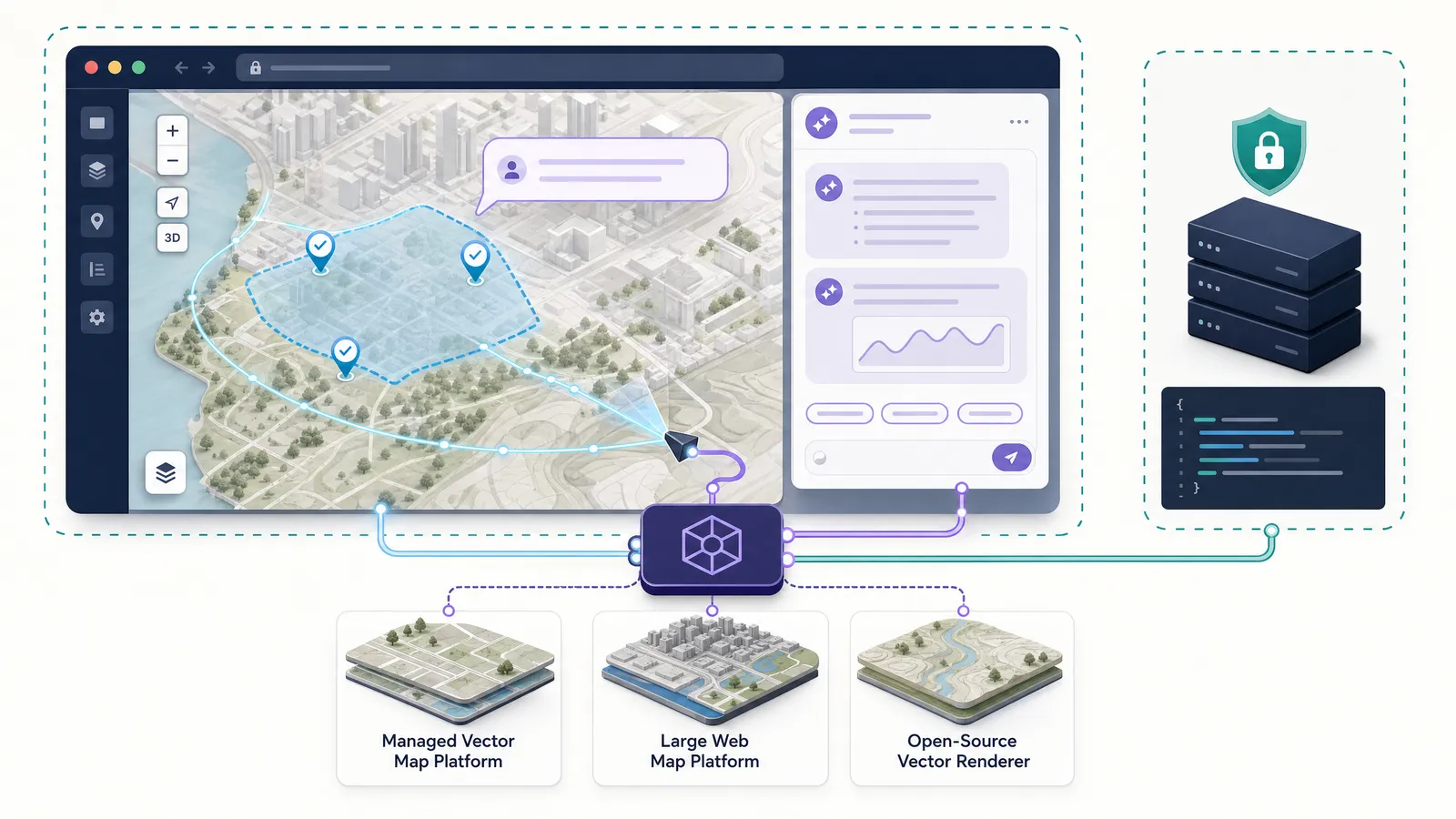
完成的體驗可協調兩個保持同步的介面:一個已在應用程式中運行的互動式地圖,以及一個 Kaleidr 在該地圖旁或上空安裝的人工智慧聊天面板。使用者以自然語言表達目標,助理則以散文和地圖狀態同時回答。表面都沒有導致另一個,因為其價值來自於將它們一起解讀。代表請求如下所示:
展示今天下午開放的濱水區附近適合家庭入住的場所。
助理解析地理意圖,返回相關地點,在即時地圖上加上圖釘,調整視野以涵蓋結果區域,並提出一個答案,讀者可透過後續問題來細化。Kaleidr 的聊天附件完全圍繞著這個迴圈而建立:product: "chat" 整合功能會將 Kaleidr 控制塔安裝在已呈現的地圖上,偵測渲染器、繪製解析位置,並在對話於位置之間移動時更新相機。目前的文件將 Mapbox、Google Maps、MapLibre 和 Leaflet 列在支援的即時地圖實例中——請參見 Kaleidr 聊天附件參考 和 開發者快速入門。對話式地圖適用於可抵禦固定篩選條件的情境問題,但傳統的搜尋框可能仍是識別已知商店識別碼、選擇固定類別或顯示預先定義路徑等決定性任務的更佳介面。
架構如何運作
加入對話式人工智慧並不會將所有責任轉移到模型上;可靠的實作可使應用程式、渲染器、人工智慧層、來源系統以及安全邊界保持獨特性。每個層都擁有一項工作,而其他工作則不應執行,而這種分離才是讓答案保持根本且權限具有可強制執行性的因素。下圖探討了一個問題如何流過這些層,而遵循的表格則會說明每個責任。
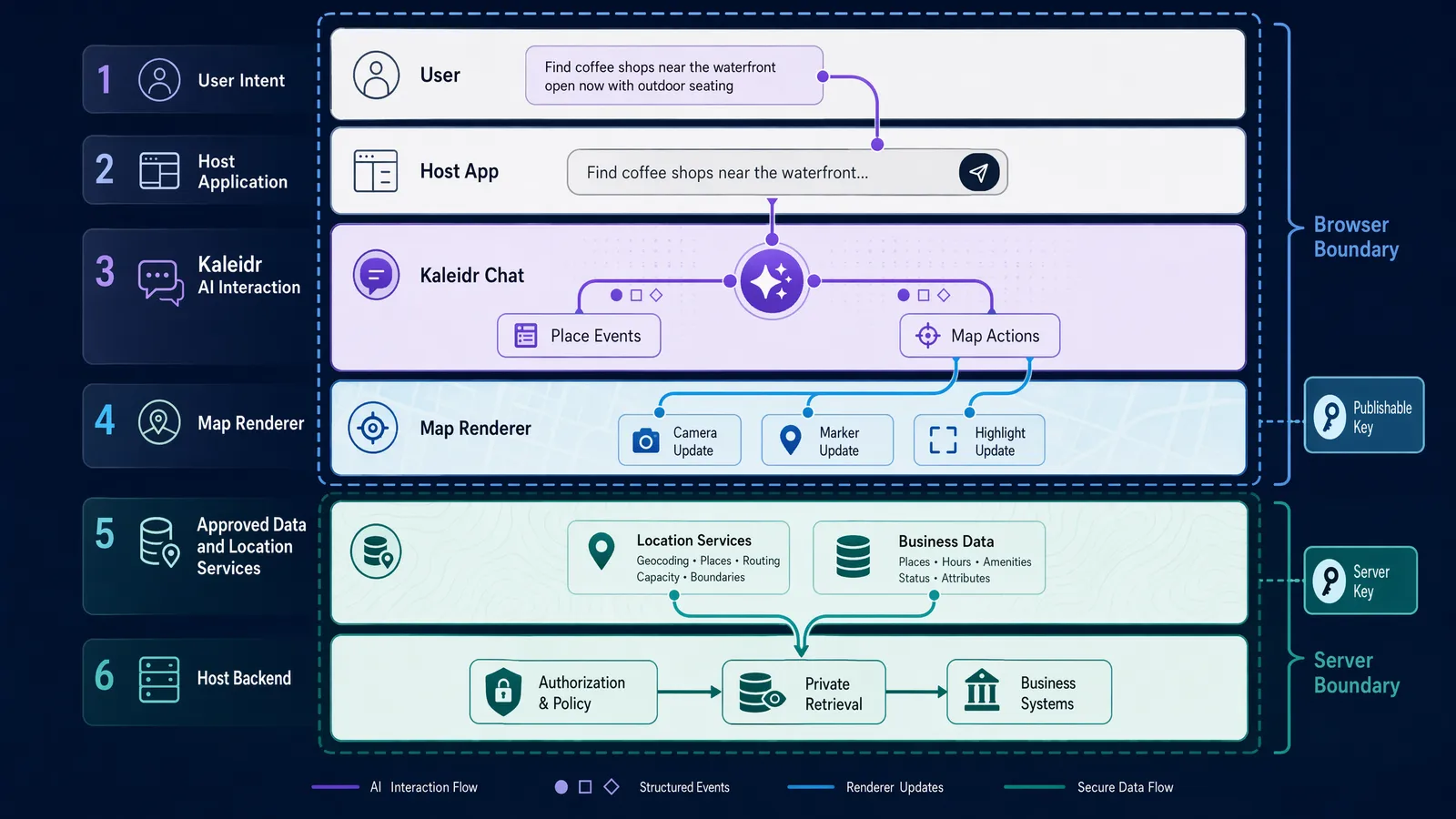
| 元件 | 第一責任 |
|---|---|
| 主機應用程式 | 使用者介面、登入使用者、租戶內容、權限、工作流程、錯誤復原 |
| Map渲染器 | 地圖顯示、相機、圖層、標記、控制以及供應商特定行為 |
| 凱萊德人工智慧層 | 意圖解讀、串流位置回答、支援的地圖操作以及聊天介面 |
| 地點服務 | 將實作所使用之解析度、地理編碼、空間情境、路由及供應商資料放置 |
| 商業系統 | 授權的私人、營運、庫存、客戶或財產記錄 |
| 主機後端 | 安全的檢索、授權、租戶隔離、稽核以及伺服器端的 API 呼叫 |
語言模型不應成為地址、營業時間、庫存、資格、路線、房產狀態或內部商業事實的權威來源。AI 層負責解讀請求並協調受支援的動作,權威服務則驗證答案所依賴的事實。Kaleidr 的串流合約也反映這種職責分離:文字回答會逐步傳送,已解析的地點會以結構化的 place 事件送達,地圖操作可出現在 early_actions,來源資訊可出現在 grounding,而最後的 end 事件包含完整文字、地點與動作。使用 kaleidr.js 的開發人員不必手動解析這些事件;建立自訂用戶端的團隊則可遵循 SSE 傳輸合約參考。
開始前需要準備什麼
安裝聊天面板之前,請先確認一份簡短的先決條件清單,以使整合在設定時無法大聲失敗,而非在執行時以靜音模式進行。在此階段,大多數問題都追溯至一個缺失項目——一個未設定的來源、一張沒有高度的地圖,或是沒有適當範圍的鑰匙。在這裡待幾分鐘,可防止瀏覽器直接間接回報的錯誤,而將除錯會話儲存。確認以下各項:
- 一個可用的 Mapbox、Google Maps或 MapLibre 地圖實例;
- 具備聊天 API 存取權限的 Kaleidr 組織;
- 具有
ai範圍的 Kaleidr 可發佈瀏覽器金鑰; - 至少一個允許即時可發佈金鑰的瀏覽器來源;
- 目前的
kaleidr.js載入器; - 具有明確高度的地圖容器;
- 支援的聊天容器或自訂元素;
- 服務供應商的憑證由 Mapbox 或 Google Maps所要求;
- 來自真實用戶工作流程的代表性問題;
- 定義任何營運事實的真相來源系統。
完整的開發者 API 存取權限(包括可發佈金鑰、伺服器金鑰與嵌入支援)隨 Kaleidr Pro 與 Enterprise 方案提供;免費方案可能只提供範圍限於地圖圖塊的瀏覽器金鑰。開始建置前,請查看目前的 Kaleidr 定價頁面與 API 金鑰文件,確認所選方案可以建立需要的憑證。如果您的帳戶無法存取 API 金鑰頁面,請向 Kaleidr 團隊申請權限,不要在瀏覽器程式碼中改用伺服器憑證。
如何使用 Kaleidr SDK 為地圖新增 AI 聊天
目前的載入程式是單一的指令碼標籤。您每頁新增一次,無論是在供應商自己的腳本之前或旁邊,都能安全地進行快取。標籤會安裝本指南中每個後續呼叫的全域輸入點。
<script src="https://cdn.kaleidr.com/embed/v1/kaleidr.js"></script>
載入器會安裝 window.Kaleidr 和 <kaleidr-map> 元素,且僅在需要時才將所選的產品套件拉到背景中;載入器本身則不會將 MapLibre 與 React 打包。SDK 支援 chat、viewer、editor 和磁磚產品,因此請依照目前頁面上顯示的您建立的特定嵌入項目的確切產品價值進行操作。對於您已擁有的即時地圖,命令性 API 是最清晰的路徑。以下範例將現有的地圖物件直接交給 Kaleidr:
<div class="map-chat-layout">
  <div id="map" aria-label="Interactive location map"></div>
  <aside id="chat" aria-label="AI map assistant"></aside>
</div>

<script src="https://cdn.kaleidr.com/embed/v1/kaleidr.js"></script>
<script>
  function mountKaleidrChat(map) {
    if (!map) {
      throw new Error("A live map instance is required.");
    }

    return Kaleidr.mount("#chat", {
      product: "chat",
      publishableKey: "kld_pk_live_REPLACE_ME",
      map,
    });
  }
</script>
Kaleidr.mount(target, options) 會同步返回一個手柄,同時產品套件會載入背景,且載入完成後,該手柄上的排隊呼叫便適用。保留返回的把手,以便主機應用程式能在變更路線、帳戶切換或元件解除安裝時,更新相機或將整合功能拆下。後續的供應商範例會將每個渲染器的目前設定與此掛載呼叫結合;在您部署至生產階段之前,驗證固定的供應商版本以及最新的 Kaleidr SDK 狀態。
為 Mapbox 新增 AI 聊天
Mapbox GL JS 會在瀏覽器容器內建立一個 mapboxgl.Map 實例,且需要存取權杖。Mapbox 建議僅針對用戶端應用程式所需的內容,設定公開的代幣範圍,並對伺服器進行網址限制以及隱藏範圍操作。以下範例將此指引與Kaleidr記錄的坐騎呼叫配對。載入兩個指令碼,建立地圖,並在地圖引發 load 事件後掛載聊天內容:
<link
  href="https://api.mapbox.com/mapbox-gl-js/v3.27.0/mapbox-gl.css"
  rel="stylesheet"
/>

<script src="https://api.mapbox.com/mapbox-gl-js/v3.27.0/mapbox-gl.js"></script>
<script src="https://cdn.kaleidr.com/embed/v1/kaleidr.js"></script>

<div class="map-chat-layout">
  <div id="map" aria-label="Mapbox map"></div>
  <aside id="chat" aria-label="AI map assistant"></aside>
</div>

<script>
  const map = new mapboxgl.Map({
    accessToken: "YOUR_MAPBOX_PUBLIC_TOKEN",
    container: "map",
    center: [-0.12, 51.5],
    zoom: 11,
  });

  map.on("load", () => {
    try {
      window.kaleidrChat = Kaleidr.mount("#chat", {
        product: "chat",
        publishableKey: "kld_pk_live_REPLACE_ME",
        map,
      });
    } catch (error) {
      console.error("Kaleidr chat failed to mount:", error);
    }
  });

  map.on("error", (event) => {
    console.error("Mapbox error:", event.error ?? event);
  });
</script>
Kaleidr 的供應商指南目前示範 Mapbox GL JS v3.0.0,而 Mapbox 的 CDN 指南則記錄了後續的 v3.27.0 版本,因此請保留您應用程式已測試的版本,並在升級此整合前確認相容性。Mapbox 代幣與 Kaleidr 可發佈金鑰分別驗證不同系統與帳單:此代幣可驗證渲染器與 Mapbox 服務,且可發佈金鑰透過瀏覽器 SDK 驗證 AI 聊天範圍。最常見的設定失敗是缺少地圖容器的高度、被拒絕或過度範圍的 Mapbox 憑證,以及在應用程式建立地圖實例之前安裝聊天功能。
為 Google Maps 新增 AI 聊天
Google Maps平台需要 Maps JavaScript API 金鑰,並支援動態程式庫匯入、直接指令碼載入以及 NPM 載入程式。Kaleidr 的官方整合指南採用直接回調模式,這是首次整合最可預測的選項。回呼會建立 google.maps.Map 實例,並將其直接傳遞給 Kaleidr.mount。以下範例會將鍵、回呼和掛號接合在一起:
<script src="https://cdn.kaleidr.com/embed/v1/kaleidr.js"></script>

<div class="map-chat-layout">
  <div id="map" aria-label="Google map"></div>
  <aside id="chat" aria-label="AI map assistant"></aside>
</div>

<script>
  function initMap() {
    try {
      const map = new google.maps.Map(document.getElementById("map"), {
        center: { lat: 51.5, lng: -0.12 },
        zoom: 11,
      });

      window.kaleidrChat = Kaleidr.mount("#chat", {
        product: "chat",
        publishableKey: "kld_pk_live_REPLACE_ME",
        map,
      });
    } catch (error) {
      console.error("Google Maps or Kaleidr initialization failed:", error);
    }
  }

  window.gm_authFailure = function () {
    console.error("Google Maps authentication failed.");
  };
</script>

<script
  src="https://maps.googleapis.com/maps/api/js?key=YOUR_GOOGLE_MAPS_KEY&callback=initMap"
  async
></script>
Google Maps金鑰與 Kaleidr 金鑰可獨立服務不同系統並進行帳單,因此將 Google 金鑰限制在必要的網站與 API 上,並將 Kaleidr 金鑰限制於確切允許的來源。Google 的地圖 JavaScript API 金鑰會載入並支付 Google Maps的帳單,而 Kaleidr 可發佈的金鑰則載入並支付 AI 聊天功能。另一個區別很重要:此整合目標設定在應用程式內的 Google Maps JavaScript API 實例,且不附加於 Google 我的地圖文件,而該文件是獨立的產品。
為 MapLibre 新增 AI 聊天
MapLibre GL JS 是一款用於向量圖的開源瀏覽器渲染器,而 MapLibre 應用程式必須提供樣式以及樣式參照的磁磚、圖形和精靈源。因此,主機團隊擁有的渲染器和基礎設施決策量超過其完全託管的地圖服務。目前的 MapLibre 文件使用 6 版中的 ES 模組。以下範例會將該模式與 Kaleidr 的掛接式呼叫進行調整:
<link
  href="https://unpkg.com/maplibre-gl@6.0.0/dist/maplibre-gl.css"
  rel="stylesheet"
/>

<script src="https://cdn.kaleidr.com/embed/v1/kaleidr.js"></script>

<div class="map-chat-layout">
  <div id="map" aria-label="MapLibre map"></div>
  <aside id="chat" aria-label="AI map assistant"></aside>
</div>

<script type="module">
  import * as maplibregl from "https://unpkg.com/maplibre-gl@6.0.0/dist/maplibre-gl.mjs";

  const map = new maplibregl.Map({
    container: "map",
    style: "https://demotiles.maplibre.org/style.json",
    center: [-0.12, 51.5],
    zoom: 11,
  });

  map.on("load", () => {
    try {
      window.kaleidrChat = Kaleidr.mount("#chat", {
        product: "chat",
        publishableKey: "kld_pk_live_REPLACE_ME",
        map,
      });
    } catch (error) {
      console.error("Kaleidr chat failed to mount:", error);
    }
  });

  map.on("error", (event) => {
    console.error("MapLibre error:", event.error ?? event);
  });
</script>
Kaleidr 目前的 MapLibre 指南採用全域 UMD 風格的 MapLibre 建置與 Kaleidr 所託管樣式的 URL,而供應商的文件已移至版本 6 ES 模組,因此請選擇一個一致的 MapLibre 版本與載入方法,以取代混合全域和模組建置。MapLibre 本身不提供通用的託管底圖,這表示第三方磁磚或樣式供應商會提供您必須遵守的憑證、歸因、授權、使用及計費需求。採用 Kaleidr 設計的磁磚也可與 MapLibre 配對,而目前的方案與樣式設定支援該工作流程。
助理如何理解地圖
一般用途的對話助理可以描述地點,但無法與頁面上的地圖協調。縮小這個差距,是讓助理能感知地圖,而不僅僅是對話性的。地圖感知助理需要一個結構化的互動迴圈,該迴圈可將語言與渲染器狀態連接起來。每個回合都經過以下序列:
- 使用者會提交位置問題。
- Kaleidr 會標示位置、區域、鄰近位置、類別或路線意圖。
- 相關服務可解決地點或取得核准資料。
- 結構化的地點與行動事件會串流至客戶。
- 此整合功能新增了腳腳、區域框架、標示結果,或套用其他支援的地圖操作。
- 介面將散文答案與可見的地理證據一同呈現。
Kaleidr 會將迴圈以一組小的串流事件形式公開,每個事件都包含單一的結果。客戶端會訂閱一次,並在每個事件到達時對其反應,而不是等待最終一次有效載荷。透過此方式讀取串流,讓介面在答案仍在形成時保持響應。記錄的事件包括:
place具有一個可解析的位置和座標;place_linked豐富了現有的環境;early_actions可以進行早期地圖操作,例如擬合邊界或突出顯示結果;grounding提供依據轉彎的來源;end是包含完整文字、地點與行動的權威性最終信封;error會以錯誤訊息終止串流。
將這些結構化事件視為應用程式合約,當 SDK 或 API 已提供已解析的位置物件時,請勿從文章中抓除地名。區分之所以重要,是因為散文可以改寫一個名稱,而已解決的地點物件則帶有穩定的識別碼,並協調渲染器,以正確繪製結果。當模型在發行之間切換的措辭變化時,建立物件而非文字也能保持整合的穩定性。
可發佈金鑰與伺服器金鑰
Kaleidr 為同一組織與功能範圍提供兩類憑證。正確區分兩者,是瀏覽器整合中最重要的安全決策:可發佈金鑰用於瀏覽器,伺服器金鑰絕不能進入瀏覽器。混用兩者很容易讓原本正常的示範洩漏敏感憑證。下圖與表格概述兩類金鑰各自的使用界線:
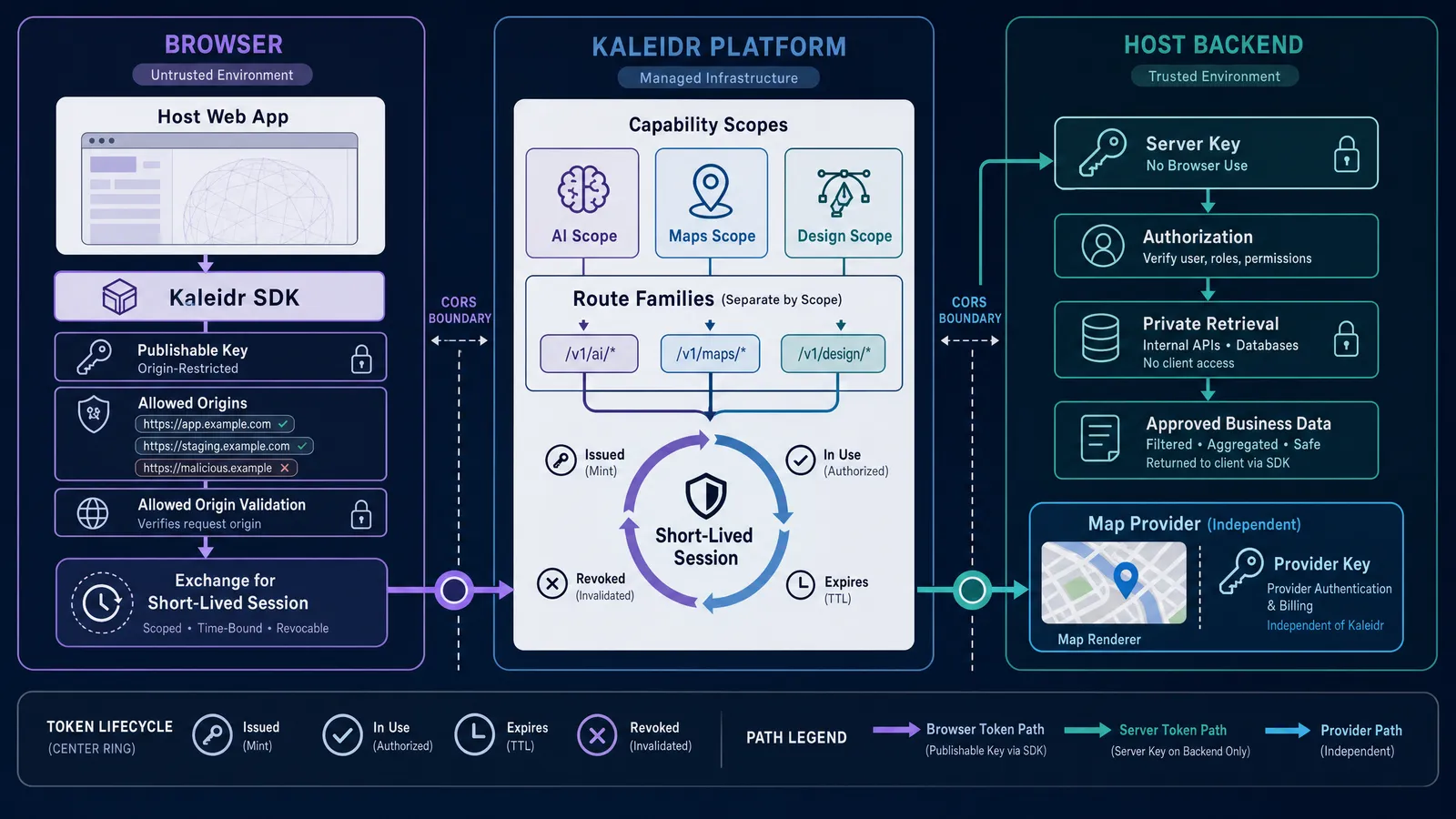
| 決策範圍 | 可發佈金鑰 | 伺服器金鑰 |
|---|---|---|
| 前綴 | kld_pk_live_… |
kld_sk_live_… |
| 執行階段 | 瀏覽器 SDK、HTML、<kaleidr-map> |
只有後端服務 |
| 網頁瀏覽器曝光 | 設計用於出現在網頁原始碼中 | 不得在網頁來源中出現 |
| 它如何驗證 | SDK 會將其用於短暫且具有原始連線的工作階段 | 以 Authorization: Bearer … 或 X-Api-Key 為 SEZQ 為 S |
| 起源控制 | Live金鑰需要核准的來源 | 未啟用瀏覽器;無 COR 授權 |
| 使用適切 | 透過 SDK 進行聊天、編輯器和磁磚嵌入 | 伺服器轉伺服器平台API呼叫 |
| 一般規則 | 將其限制為確切來源,並僅透過 SDK 使用 | 安全地儲存並防止其與瀏覽器及版本控制 |
未經允許來源的即時可發佈金鑰在記錄流程下被拒絕,因此在建立金鑰時,可添加精確的生產與分期來源。每個請求的瀏覽器Origin標頭與清單完全匹配,因此允許的來源必須是一個裸原,例如https://app.example.com(無路徑或尾路斜索的方案和主機),您也列出所有來源,包括您當地的開發來源。金鑰還具有功能範圍:用於聊天和推論的 ai、用於編輯路由的 design,以及用於設計基本地圖和圖塊的 maps。
該平台會針對不同狀態碼的憑證問題進行訊號傳遞,介面應以不同方式對待每一個。遺失、無效、撤銷或過期的憑證回報 401;未具備必要範圍之有效金鑰,可傳回 403 與 insufficient_scope;以及配額或並行限制,而此限制應將介面視為容量或計畫條件,而非一般產品失敗。Mapbox 和 Google Maps憑證在整個過程中與 Kaleidr 憑證保持獨立,因此請獨立適用各供應商的限制。
以可靠的位置資料為 AI 回答提供依據
與地點相關的幻覺尤其有害,因為地圖使得錯誤的答案看起來具體且值得信賴。純文字中錯誤的位址會促使重新檢視,而將相同錯誤釘在座標上,讀取為已驗證。地圖的權威正是整合必須獲得的,而非假設。常見的失效模式值得在設計之前加以命名:
- 捏造的業務或設施;
- 一個模糊的地名解析錯了城市;
- 一個過時的地址或開放時間;
- 代表相同地點的重複記錄;
- 申請未授權之服務所要求之路線;
- 在可見或允許區域外的建議;
- 與內部系統衝突的營運主張。
一個紮實的架構透過透過解析度和檢索來引導每個答案,而非自由生成,使模型保持在其車道上。該模型提出意圖,且權威服務單位在任何事物到達地圖之前,皆能決定其真實性。每個階段都是應用程式控制的檢查點,而非模型自行執行的步驟。流程會朝一個方向顯示,從使用者的單字到可見且經過檢查的結果:
使用者意圖 → 人工智慧解讀 → 權威的檢索或地點解析 → 允許地圖操作 → 可見答案
實際的控制是從這個流程中進行的。在繪製之前,先將位置解析成座標與穩定識別碼,顯示答案所使用的地理區域,當回應有來源依據時保留來源連結或標籤,並區分公共場所事實與私人操作資料。拒絕不受支持的行為,而非即興行動,提供明顯的無結果狀態,讓使用者能更正位置模糊性,並記錄用於商業答案的來源與租戶背景。最重要的是,將最終的結構化結果視為合約,而非伴隨其自由形式的散文。關於地點身分、證據與推薦訊號的更廣泛討論,請參見《Kaleidr》關於AI驅動的本地商業發現的文章,以及對話面背後的架構與安全原則,請參閱在互動式地圖中新增AI聊天助理。
助理可以使用私人商業資料嗎?
人工智慧聊天面板不應能無限制地存取公司的營運資料庫,因為單一的超廣向查詢可能比目前的問題所需要揭露得更多。因此,私有資料整合需要明確的檢索與授權設計,而非模型可透過開放連線進行。最安全的預設值是,在特定資料集、欄位集和存取規則為每次新增時,才會公開任何內容。在將任何私人來源與助理連接之前,先先解決以下界限:
- 助理可能查詢哪些資料集;
- 哪些屬性可以離開原始系統;
- 哪些使用者和租戶可以存取每張專輯;
- 如何實施租戶隔離;
- 哪些欄位具有敏感性;
- 檢索是否透過主機後端進行;
- 記錄內容及記錄時間長遠;
- 來源歸屬如何被保存;
- 適用之區域性、契約或保留要求;
- 哪些操作需要人工確認。
Kaleidr Enterprise 描述了推論 API、排名系統、分析和部署支援位置感知產品堆疊,但公開文件並未為每個私有資料庫建立一個通用連接器。檢索路徑取決於您自己的系統、權限模型以及合規性限制,而這些通用連接器無法代表您承擔。將私有資料路徑視為實作特定或企業整合,直到為您的環境記錄到確切的來源、授權和檢索機制為止。
實用地圖聊天的 UX 模式
若聊天與地圖競爭以爭取關注而非合作,技術上正確的整合仍可能失敗。隱藏地圖或無解釋跳圖的面板,會讓使用者不確定該信任哪個表面。以下模式使兩者保持單一的回答,且每一個都能處理一種特定的配對方式,這種方式往往會破裂。
讓地圖保持可見
地圖是答案的一部分,而非聊天可以涵蓋的背景。在桌面上,避免將其隱藏在全螢幕的聊天介面後方,在行動裝置上,請使用可調整的工作表或緊湊的聊天模式,以儲存足夠的地圖內容以理解結果。無法看到徽章的使用者無法判斷答案是否正確。
顯示助理觸發的變更
當助理新增標記、更換相機、突出顯示區域或啟動路線時,動作便清晰可見。以地圖狀態突然跳出,沒有明顯原因,顯示為錯誤,因此會動畫或註解此變更。使用者應隨時了解地圖移動的原因。
保留手動控制項
助理操作後,使用者仍需使用平移、縮放、重設、定位、篩選及直接選擇標記。人工智慧應新增互動路徑,而非移除使用者已依賴的現有復原路徑。將對話視為一種與標準的控制,而非取代對話的單一控制。
支援復原與重設
提供明確清除助理標記、恢復先前相機並重新啟動對話的明確方法。一種不可逆轉的地圖狀態在探索性問題時會產生混淆,使用者通常希望將一個答案與最後一個答案進行比較。一次重置的負擔,將死路重新變成探索。
提供建議問題
建議可教導使用者系統可操作的內容,並減少空置或未支援的請求。以實際產品工作流程為例,而非一般旅遊提示,因為一個能反映實際任務的建議,既能顯示價值,又能引導模型導向其能很好地回答的查詢。隨著產品成長而旋轉,因此面板可維持廣告的即時功能,而非冷凍啟動器。
設計無結果與錯誤狀態
區分一個不匹配的結果,使其脫離模糊地點、已過期的會話、不允許的來源、供應商錯誤、配額條件以及未受支持的請求。出錯的情況對於地圖工作流程而言,操作上不夠實際,其復原步驟在錯誤來源與空的結果集之間有了顯著差異。說出條件,並提出下一步。
以無障礙使用為設計目標
標示聊天區與地圖,保留鍵盤順序,並在不壓倒性螢幕讀取器的情況下宣布串流狀態。僅透過標記顏色傳遞的任何資訊,都必須以文字作為文字提供,因此無法區分顏色的使用者仍會收到完整的答案。此處的無障礙與依據處於同一學科:答案必須持續被宣讀,而不僅僅是被檢視。
需要追蹤的事件與指標
原始聊天開啟無法證明其價值,因此請使用助理來判斷它是否確實有助於使用者完成地圖任務。以下活動名稱為編輯建議,而非關於自動發出 Kaleidr Analytics 事件的聲明。將它們調整到您自己的架構,但若將嘗試、成功與失敗的分割,這些指標之後就取決於這些結構。從像這樣的活動集開始:
map_chat_opened
map_chat_question_submitted
map_chat_answer_returned
map_chat_no_result
map_chat_error
map_action_applied
map_result_selected
map_marker_opened
map_chat_followup_submitted
map_chat_shared
map_chat_to_editor
從這些事件中,實際反映實用性的指標是完成與成果衡量,而非數量。開啟和問號描述流量,但他們並未說明助理是否解決了這項任務。因此,一個實用的儀表板將每項活動計數與預期產生的結果配對。將其權重用於追蹤已完成工作的各項措施,例如:
- 問題是完成率;
- 回答成功率;
- 無結果率;
- 技術錯誤率;
- Map-action的成率;
- 結果選擇率;
- 標記-開率;
- 後續問題率;
- 結果有用的時間;
- 儲存或分享率;
- 下游轉換;
- 完成聊天導向地圖操作的使用者,取得七天報酬率。
以供應商、裝置、查詢類型、客戶帳戶和啟用的工作流程來細分結果,因為彙總編號會隱藏助理的運作方式以及其無法運作的位置。高開率與低結果選擇率相結合,通常會引發好奇心,而非產品價值,這正是僅追蹤開啟的誤讀方式所引發的。一起閱讀這些片段,能告訴你哪些表面值得更多投資,哪些需要重新思考。
正式環境測試檢查清單
內部示範提示通常比生產使用者實際輸入的問題更簡潔且更具體。僅針對整齊輸入進行測試,會隱藏從拼寫錯誤到已過期的作業,最重要的失敗狀態。以下列表刻意將模糊的語言、供應商錯誤和生命週期事件混為一應,因為每個事件在整合過程中會有所不同。在出貨前,請務必針對這些雜亂的輸入和錯誤條件進行助理操作:
- 模糊的問題;
- 地點拼寫錯誤;
- 在不同地區重複地名;
- 結果集是空的;
- 無效的可發佈金鑰;
- 瀏覽工作階段已過期;
- 缺失能力範圍;
- 一個
429配額或同時匯率回應; - 網路速度緩慢或中斷;
- 服務供應商配額或驗證失敗;
- reload;地圖樣式;
- 行動裝置調整調整與定位;
- 僅限鍵盤導覽;
- 螢幕閱讀器標籤與即時更新;
- 請提出無支援的請求;
- 未經授權的私人資料請求;
- Map準備前進行聊天安裝;
- 在單一頁面上進行多個地圖實例;
- 路線變更與元件未安裝;
- 使用者、組織或租戶切換。
常見實作錯誤
以下失敗會在整合時重複發生,且每個都具有簡潔的修正。沒有人是異國情調的,這正是它們容易意外運送的原因。請將表格解讀為「哪些內容破裂、為何會破裂,以及該做什麼」。
| 錯誤 | 發生什麼事 | 建議更正 |
|---|---|---|
| 在可用的地圖實例存在之前,先安裝聊天 | 助理無法控制預期的渲染器 | 在供應商記錄的初始化點後安裝,並傳遞即時地圖物件 |
| 揭露Kaleidr伺服器金鑰 | 後端承載者可公開恢復 | 在瀏覽器中使用具有來源限制的可發佈金鑰 |
| 忘記設定允許的來源 | 即時瀏覽器驗證會遭拒,或金鑰的保護範圍過寬 | 建立金鑰時加入正確的正式與預備環境來源 |
| 將模型散文視為來源資料 | 錯誤的事實可以被視為權威 | 使用解決地點、依據和權威的商業系統 |
| 允許不受限制的地圖操作 | 介面可能會進入異常狀態 | 請僅套用有記錄且允許列出的操作 |
| 更換手動控制 | 使用者失去復原與直接導覽 | 保留標準的地圖控制與重置路徑 |
| 只有追蹤聊天才能開啟 | 參與被誤認為是任務成功 | 追蹤答案、地圖操作、結果選擇以及下游結果 |
| 無視無結果的州 | 使用者將沉默解讀為一種破碎的產品 | 返回特定的空狀態訊息及復原建議 |
| 混合供應商與 Kaleidr 認證 | 計費、安全性和除錯變得不明確 | 保持憑證、限制和監控分開 |
| 未測試行動版設計 | 聊天會遮蔽地圖或斷斷觸導航 | 使用響應式面板和測試方向變更 |
Mapbox、Google Maps 或 MapLibre:應該選擇哪一個?
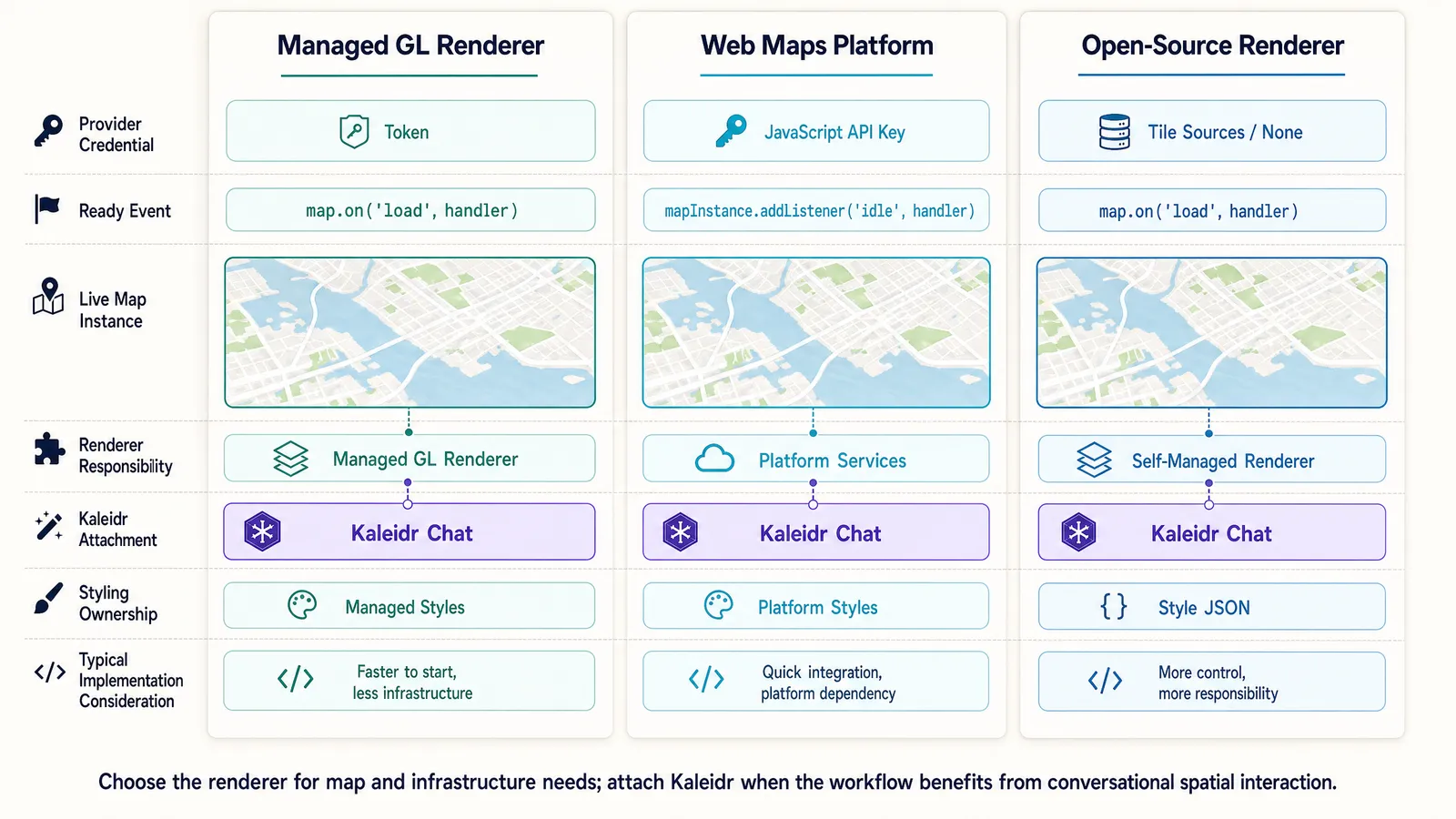
Kaleidr 是人工智慧互動層,因此渲染器的決策仍屬於主機產品,而非助理。正確的渲染器取決於您現有的工具、樣式控制以及基礎架構需求,而這些內容都不會更改。下表概述了每個渲染器的契合位置以及主播團隊持續擁有的內容,其中 Kaleidr 在這三者中皆被加入為一致的對話層。
| 服務供應商 | 強效合時 | 主機團隊的考量 |
|---|---|---|
| Mapbox | 該應用程式使用 Mapbox 的管理開發人員工具、樣式、資料生態系統以及 GL JS 渲染器 | 公開代幣、網址限制、供應商使用率、樣式生命週期以及 Mapbox 帳單 |
| Google Maps | 該應用程式依賴 Google Maps平台、Google 位置情境,或現有的地圖 JavaScript 實作 | 受限的 Google API 金鑰、已啟用的 API、Google 帳單、回呼或載入程式生命週期 |
| MapLibre | 該團隊希望透過開源渲染器,並對樣式、磁磚和基礎設施進行更嚴格的控制 | 樣式與磁磚來源、歸因、主機、效能、供應商授權以及版本管理 |
| Kaleidr | 該應用程式需要在支援的渲染器上進行對話位置互動 | 可發佈金鑰、ai 範圍、允許來源、組織配額、依據功能及產品分析 |
當目前地圖已符合應用程式的渲染需求時,請勿僅將渲染器切換為新增聊天。將現有的即時地圖實例傳遞至 Kaleidr,並衡量對話層是否能改善特定且定義的使用者任務。渲染器遷移是一項大型且獨立的決策,應根據自身的渲染和基礎設施優勢,而非透過聊天功能來呈現。
最終實作檢查清單
- 目前已確認地圖工作流程
- 已確認支援的渲染器
- 服務供應商地圖載入成功
- 供應商憑證受限制
- Kaleidr計畫與訪問已確認
- 建立可發佈金鑰
ai範圍已確認- 可設定來源
- 瀏覽器程式碼中排除的伺服器金鑰
kaleidr.js載入一次- 即時地圖實例已傳遞給
Kaleidr.mount - 使用與應用程式生命週期相關的聊天生命週期
- 已確認支援的地圖操作
- 真相來源系統已記錄
- 已實施無結果與錯誤狀態
- 已實施配額處理
- 此外還新增了分析事件
- 安全與隱私審查已完成
- 無障礙測試
- 行動裝置行為測試
- 真實用戶問題測試
結論
Mapbox、Google Maps和 MapLibre 無需更換,無需再更換以新增具備地圖感知功能的人工智慧聊天功能,因為渲染器仍持續擁有地圖顯示和供應商特定的行為。主機應用程式持續擁有使用者、權限、商業邏輯以及資料治理,而 Kaleidr 則新增了可解析位置意圖的對話層、串流結構化位置結果、繪製位置,以及協調支援的地圖動作。兩項職責保持獨特性,這正是整合可調式與答案依據的內容。
當自然語言能減少位置工作流程中的實質摩擦時,整合就能獲得一席之地,而不僅僅是在頁面中新增聊天框。只有在答案持續不變、瀏覽器與伺服器憑證保持分離、供應商職責保持明確,以及分析衡量已完成的地圖任務而非單獨聊天活動時,才會成功。與這四種條件相互對抗,助理將成為真正的互動路徑,而非新穎的。需要快速優先地圖創作的團隊(不僅限於現有地圖上的聊天),可從 Kaleidr Studio 開始。
為現有地圖新增 AI 互動
將 Kaleidr 聊天功能連接到您已運行的 Mapbox、Google Maps或 MapLibre 地圖,無需更換渲染器。目前的 SDK 僅需要即時地圖實例和可發佈的原始限制鍵,且三個鍵的掛載呼叫完全相同。使用 ai 範圍建立金鑰,加入允許的來源,然後將地圖傳遞給 Kaleidr.mount。
檢視完整實作
Kaleidr 的開發者文件涵蓋了本指南所總結的部分,內容深度包含生產建置需求。SDK 快速啟動、特定供應商的指南與驗證模型,可與檢視器、編輯器、磁磚和平台 API 參考資料並列。從工作原型轉向強化整合時,即可開始。
常見問題
可以為現有地圖新增 AI 聊天嗎?
是的。Kaleidr 的聊天產品接受即時地圖實例,目前會記錄 Mapbox、Google Maps、MapLibre 和 Leaflet 附件。現有的渲染器仍負責顯示地圖,而Kaleidr則將對話層加到地圖上方。
需要更換 Mapbox、Google Maps 或 MapLibre 嗎?
不。主機應用程式可保留其現有的渲染器,而 Kaleidr 則可作為與即時地圖實例連接的 AI 互動層運作。將地圖實例傳遞至 Kaleidr.mount 就足夠了——無需進行渲染器遷移。
Kaleidr 如何連接即時地圖?
載入 kaleidr.js,建立或取得供應商的即時地圖物件,並使用可發佈的金鑰 product: "chat" 和地圖實例呼叫 Kaleidr.mount。Kaleidr 會自動偵測支援的渲染器,並透過此偵測標記與相機進行座標。
應該使用可發佈金鑰還是伺服器金鑰?
透過瀏覽器 SDK 來發佈聊天、編輯器或磁磚嵌入,並僅針對後端平台 API 請求使用伺服器金鑰。可發佈的金鑰設計為出現在網頁原始碼中;伺服器金鑰絕不能如此。
如何防止助理編造地點?
透過權威的定位服務,運用結構化的地點與依據活動,並保留商業體系作為真相的來源,來解決問題。允許列出助理可能採取的地圖操作,並明確提供無結果和模糊狀態,使答案的不確定性而非虛構的地方。
Kaleidr 會負擔 Mapbox 或 Google Maps 的使用費嗎?
不。供應商帳戶與 Kaleidr 帳戶為獨立帳號:Mapbox 或 Google 向渲染器及相關服務供應商提供服務,而 Kaleidr 則對 Kaleidr 組織的人工智慧功能進行帳單。各供應商各自獨立實施其自身的限制與配額。
AI 聊天適合所有地圖嗎?
不。固定的搜尋框、篩選器或直依據圖控制通常更適合用於簡單的決定性任務,例如開啟已知的商店或選擇一個類別。當使用者需要表達固定式情境、變更或多變位置意圖時,AI 聊天最實用,而固定的濾波器無法擷取。
參考資料
- Google. Load the Maps JavaScript API. Google Maps Platform documentation. Accessed 24 July 2026. https://developers.google.com/maps/documentation/javascript/load-maps-js-api
- Google. Google Maps Platform security guidance. Google Maps Platform documentation. Accessed 24 July 2026. https://developers.google.com/maps/api-security-best-practices
- Kaleidr. Attach Kaleidr AI to a Google map. Kaleidr Developer Docs. Accessed 24 July 2026. https://docs.kaleidr.com/guides/attach-ai-to-google-maps
- Kaleidr. Attach Kaleidr AI to a Mapbox map. Kaleidr Developer Docs. Accessed 24 July 2026. https://docs.kaleidr.com/guides/attach-ai-to-mapbox
- Kaleidr. Attach Kaleidr AI to a MapLibre map. Kaleidr Developer Docs. Accessed 24 July 2026. https://docs.kaleidr.com/guides/attach-ai-to-maplibre
- Kaleidr. Auth & scopes. Kaleidr Developer Docs. Accessed 24 July 2026. https://docs.kaleidr.com/platform-api/auth-and-scopes
- Kaleidr. Chat — attach AI to your map. Kaleidr Developer Docs. Accessed 24 July 2026. https://docs.kaleidr.com/sdk/chat-attach
- Kaleidr. CORS & allowed origins. Kaleidr Developer Docs. Accessed 24 July 2026. https://docs.kaleidr.com/platform-api/cors-and-allowed-origins
- Kaleidr. Get an API key. Kaleidr Developer Docs. Accessed 24 July 2026. https://docs.kaleidr.com/get-an-api-key
- Kaleidr. Pricing & Plans. kaleidr.com. Accessed 24 July 2026. https://kaleidr.com/pricing
- Kaleidr. Quickstart. Kaleidr Developer Docs. Accessed 24 July 2026. https://docs.kaleidr.com/quickstart
- Kaleidr. SSE wire contract. Kaleidr Developer Docs. Accessed 24 July 2026. https://docs.kaleidr.com/platform-api/sse-wire-contract
- Mapbox. Get started with Mapbox GL JS using a CDN. Mapbox GL JS documentation. Accessed 24 July 2026. https://docs.mapbox.com/mapbox-gl-js/guides/get-started/use-with-cdn/
- Mapbox. How to use Mapbox securely. Mapbox Help. Accessed 24 July 2026. https://docs.mapbox.com/help/dive-deeper/how-to-use-mapbox-securely/
- MapLibre. Display a map. MapLibre GL JS documentation. Accessed 24 July 2026. https://maplibre.org/maplibre-gl-js/docs/examples/display-a-map/
- MapLibre. Map event types. MapLibre GL JS API documentation. Accessed 24 July 2026. https://maplibre.org/maplibre-gl-js/docs/API/type-aliases/MapEventType/
@misc{kaleidr_chat_attach,
  title  = {Chat — attach AI to your map},
  author = {{Kaleidr}},
  note   = {Kaleidr Developer Docs; accessed 24 July 2026},
  url    = {https://docs.kaleidr.com/sdk/chat-attach}
}

@misc{kaleidr_auth_scopes,
  title  = {Auth \& scopes},
  author = {{Kaleidr}},
  note   = {Kaleidr Developer Docs; accessed 24 July 2026},
  url    = {https://docs.kaleidr.com/platform-api/auth-and-scopes}
}

@misc{kaleidr_mapbox_guide,
  title  = {Attach Kaleidr AI to a Mapbox map},
  author = {{Kaleidr}},
  note   = {Kaleidr Developer Docs; accessed 24 July 2026},
  url    = {https://docs.kaleidr.com/guides/attach-ai-to-mapbox}
}

@misc{kaleidr_google_maps_guide,
  title  = {Attach Kaleidr AI to a Google map},
  author = {{Kaleidr}},
  note   = {Kaleidr Developer Docs; accessed 24 July 2026},
  url    = {https://docs.kaleidr.com/guides/attach-ai-to-google-maps}
}

@misc{kaleidr_maplibre_guide,
  title  = {Attach Kaleidr AI to a MapLibre map},
  author = {{Kaleidr}},
  note   = {Kaleidr Developer Docs; accessed 24 July 2026},
  url    = {https://docs.kaleidr.com/guides/attach-ai-to-maplibre}
}

@misc{mapbox_cdn_guide,
  title  = {Get started with Mapbox GL JS using a CDN},
  author = {{Mapbox}},
  note   = {Mapbox GL JS documentation; accessed 24 July 2026},
  url    = {https://docs.mapbox.com/mapbox-gl-js/guides/get-started/use-with-cdn/}
}

@misc{google_maps_js_loader,
  title  = {Load the Maps JavaScript API},
  author = {{Google}},
  note   = {Google Maps Platform documentation; accessed 24 July 2026},
  url    = {https://developers.google.com/maps/documentation/javascript/load-maps-js-api}
}

@misc{maplibre_display_map,
  title  = {Display a map},
  author = {{MapLibre}},
  note   = {MapLibre GL JS documentation; accessed 24 July 2026},
  url    = {https://maplibre.org/maplibre-gl-js/docs/examples/display-a-map/}
}